Penbook, Penbook.
Penbook has just received its biggest update since 2019, but you might not have noticed it yet.
In June 2026, Apple announced iOS 27 and iPadOS 27 to developers. These updates were packed with new stuff that answered many of Penbook's hardest questions. The summer schedule was obvious: ship the biggest update to Penbook ever. Now it's out, and I can't wait to hear what you think.
A new engine for Live Paper
Notebooks that you create with Penbook 8 are based on our new Live Paper engine, powered by Apple's PaperKit framework.
The first thing you should check out is the reed pen. This new tool draws organic, flowing strokes. Unlike the calligraphy pen, it doesn't twist its nib angle with the barrel roll of your Apple Pencil. Instead, the nib angle is configurable, so you can practise perfect lines.
Speaking of perfect lines: Penbook's shape recognition is now more reliable, and more fun. When you're finished drawing a rough shape (clouds, circles, hearts...), just hold your Pencil still on your iPad. Your drawing will be recognized and snapped to a sharp, precise version. If you don't like the change, just tap 'undo'.
Penbook's new Live Paper makes it easier to mix ink with other media. Now you can insert images, text boxes, stickers, and shapes, and easily layer and crop them. You can even drag them from one page to another with the minimap. It works like you'd expect a drawing app to work.
The lasso gets an upgrade, too: lasso some ink, and a bounding box with resize handles appears. You can recolour your ink, drag a corner to resize the selection, reflow your handwriting into a narrow column, or twist two fingers on the box to rotate it. On a selection, tap the ⋯ menu to see even more helpful functions:
- Straighten tidies up your ink without altering your handwriting's distinct characteristics
- Copy as Text recognizes your handwriting, and puts it on the clipboard as text you can paste into Messages or an email
- Create Sticker makes a reusable sticker out of your drawing (some doodles are too good to be stuck in a notebook!). You can drop this in your notes, or anywhere else you use stickers (like Messages).
All of this adds up to a more reliable, more intuitive Live Paper that makes taking notes enjoyable.
A tuneup for PDFs
PDF is a format that can do almost anything, and Penbook sees it all: 500MB raster textbooks, $40 interactive planners off Etsy, 3-foot wide math worksheets. I've had to come to terms with the fact that there's no limit to how weird a PDF can get, because importing, annotating, and exporting PDFs is one of Penbook's core features. In Penbook 8, I've tightened up the flow from import to export to make dealing with PDFs smoother. Here's what Penbook 8 can do for your PDFs:
- Import a PDF, and annotate it just like any other Penbook notebook (and also reorder, duplicate, and remove PDF pages)
- Bring your own stationery by using your own PDF as a template
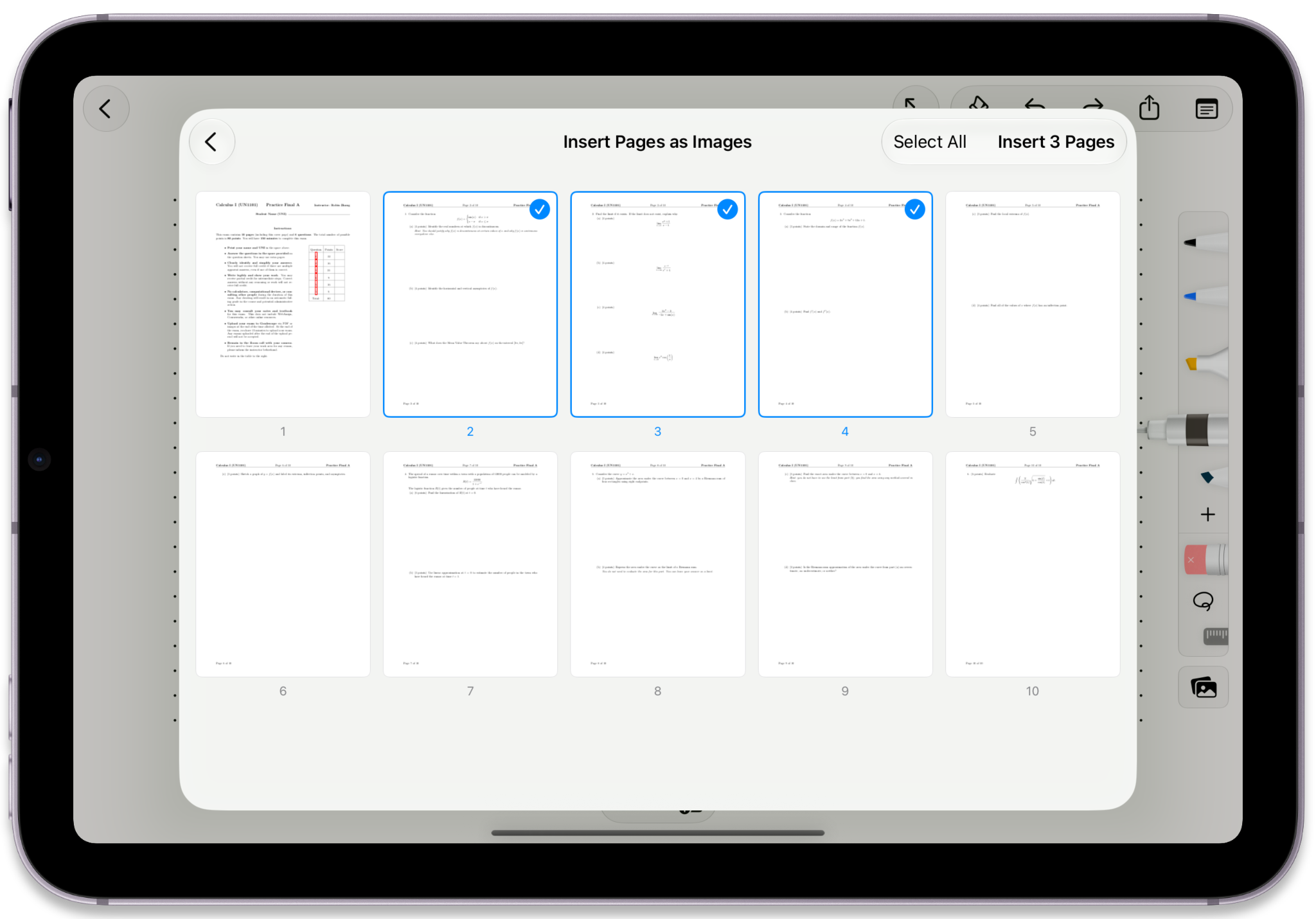
- Add a PDF to your notes: select some of the PDF's pages, and drop them into your notebook, where you can crop them and move them (perfect for assignment worksheets)
- Export part of your notebook as a custom PDF - if you have a huge notebook, just tap a couple of pages and share them as a high-res, low-MB file instead of sending the whole thing
- Export your entire notebook, or even your entire library, to PDF, because PDF is a solid archival format
Smarter notes with Apple Intelligence
Tired of hearing about AI yet? This is different. Penbook uses Apple Intelligence to give you AI features without your notes ever leaving your device, so your data stays private - as the app developer, I can't read your notes, and neither can Apple.
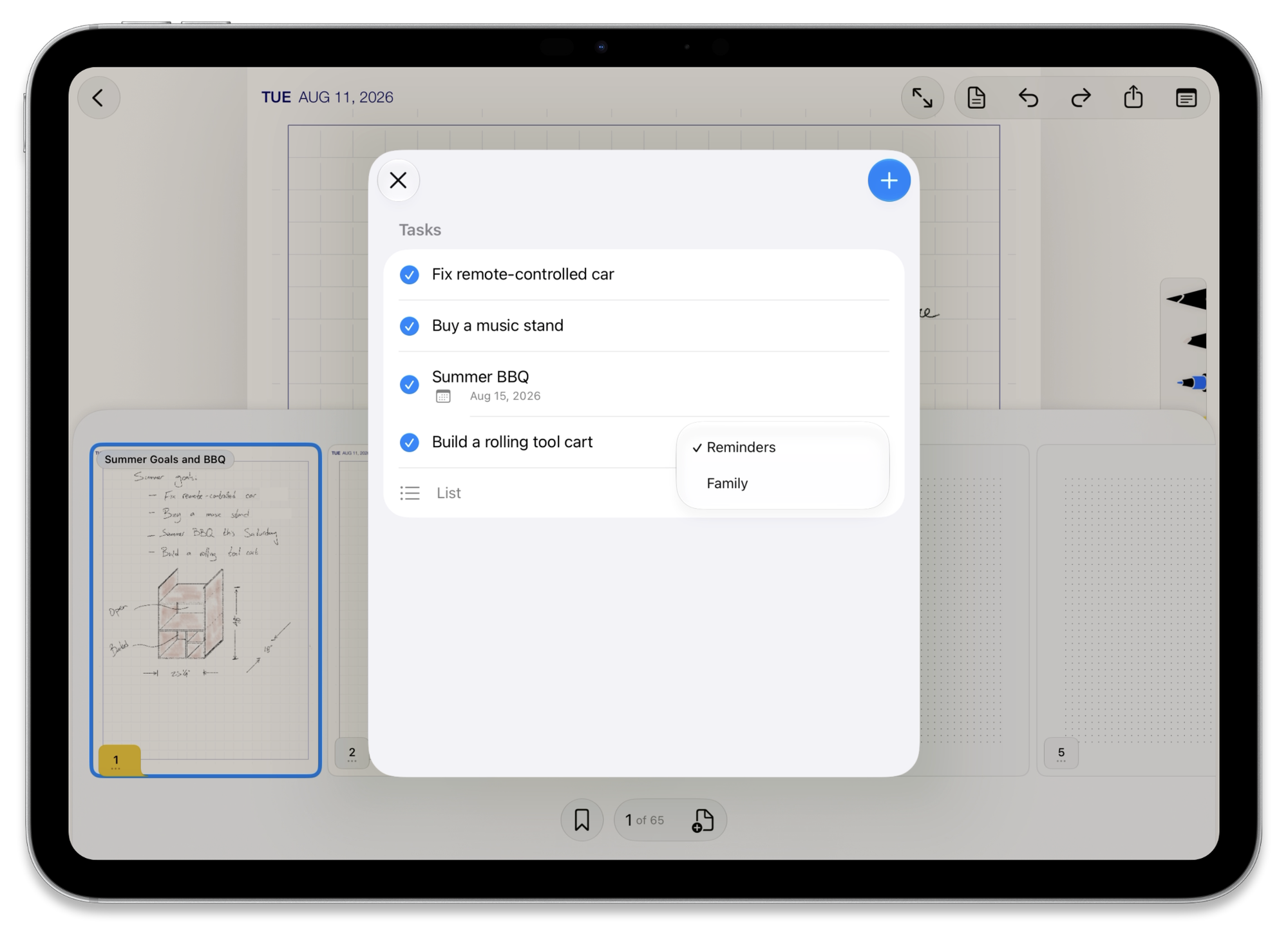
At your request, Penbook scans your page, recognize to-dos, and add them to your Reminders app. It also gives your pages titles, and suggests prompts for Image Playground.
You can control Penbook with Siri, too. If you ask Siri to find something in your notes, it will happily oblige. Or, ask Siri to take a note for you, and it will get automatically added to a new page in the Idea Feed of your Inbox notebook.
New data safety features
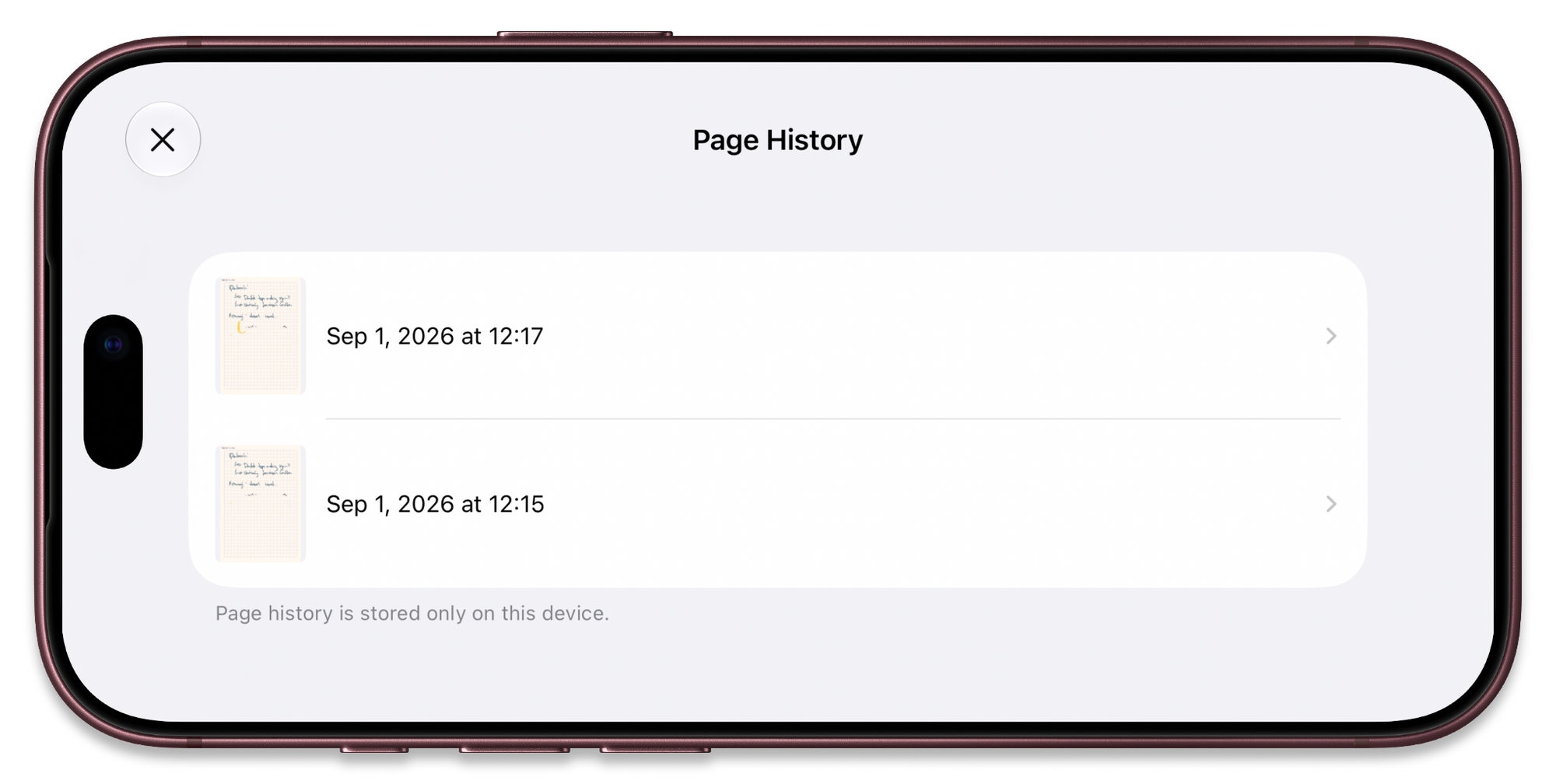
Penbook 8 protects your data at the per-page level. Each page keeps the history of its recent changes, so you can rewind to a previous version right from the minimap. You can also see your entire library page history at once, including page and book deletions. When you restore from this history, it does so without overwriting your current version so you can safely go back and forth. Your page history is private; it stays local to your device, and it's never uploaded to a server.
To help you back up your work, the page history is exportable, and you can use it to recover your entire Penbook library if the need arises.
Maybe you're worried about your work being trapped in Penbook. That's what the whole-library PDF export is for. Penbook exports are vector-based to preserve the detail of your ink. You can even edit them with a PDF editor.
What's next?
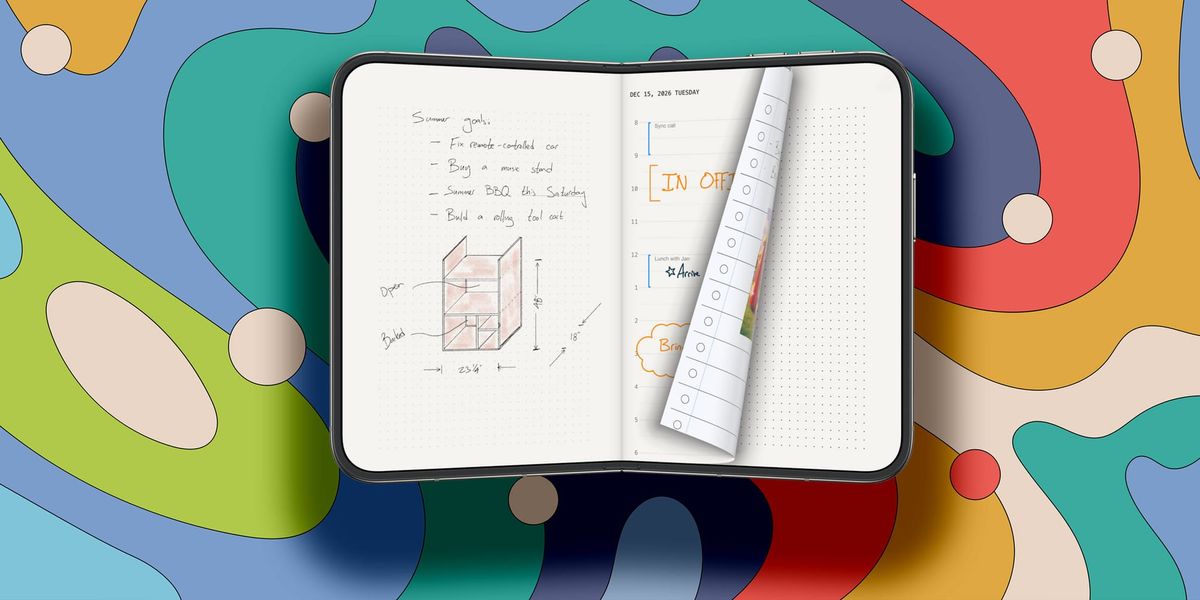
You might have heard there's a new iPhone coming. iPhone Duo can be opened like a book, so we thought Penbook should give you the option to use it like one.
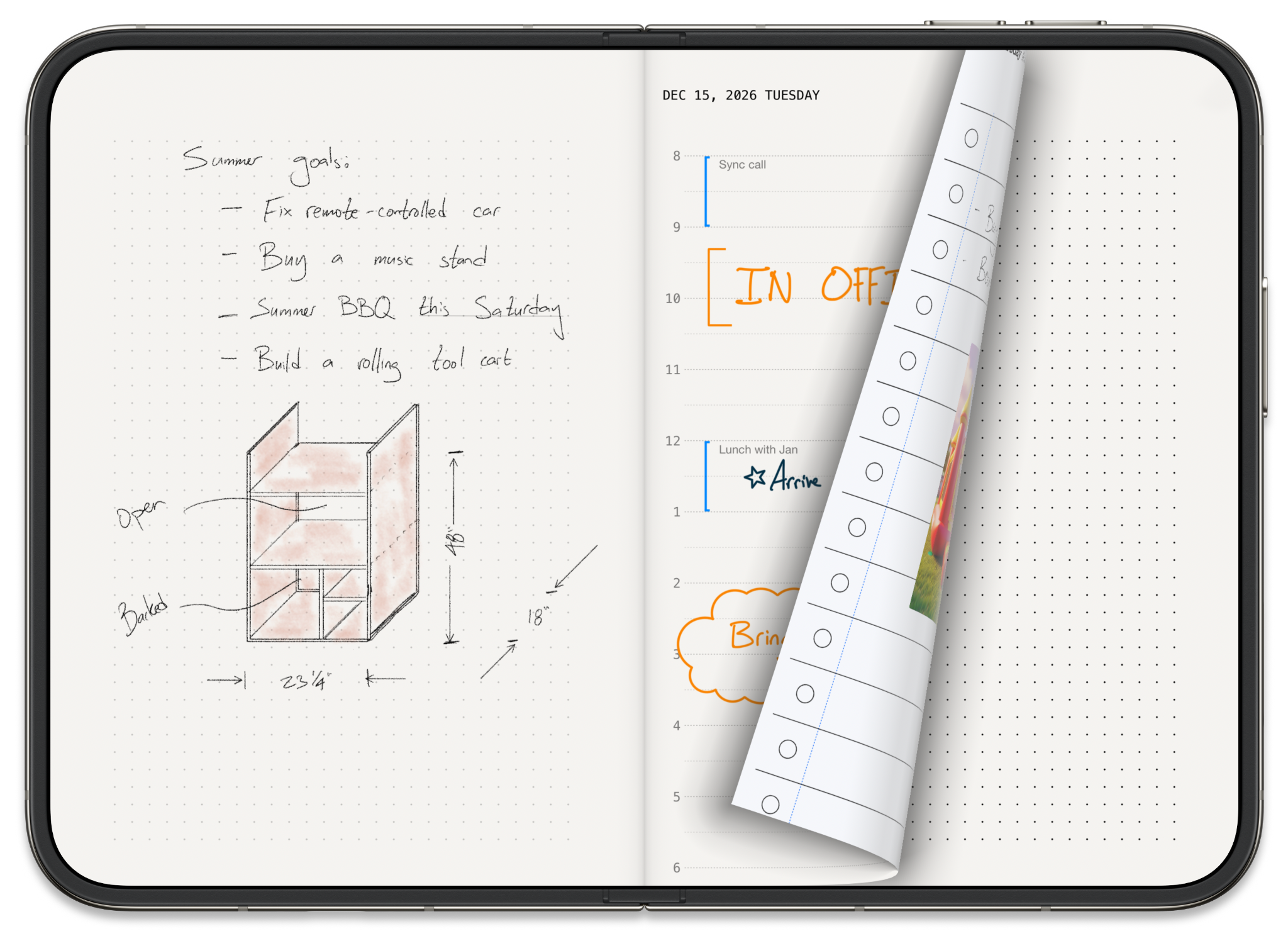
You can preview the new two-page mode now on your iPad: in Penbook's Settings tab, enable 'Show two pages'. You can then toggle this view off and on in the minimap menu, to your preference. Note that this option will only appear on devices wide enough for two pages to be practical.
The page turn animation is cute, but the big news for Penbook is that iPhone Duo will support Apple Pencil. I can't wait to get my hands on it and start testing Penbook for you.
Talk to you again in October!
Ben
Team Penbook